Setting Up Google Drive MCP for Codex on Linux
Introduction
Model Context Protocol (MCP) is a practical way to connect AI coding tools to external systems. I wanted Codex to search my Google Drive from a Linux workstation, so I set up a Google Drive MCP server and connected it to Codex.
The final setup worked, but the path there exposed several useful lessons:
- Google Cloud project IDs matter more than display names.
- Snap confinement can break CLI tools that need hidden config directories.
- Google's hosted Drive MCP endpoint did not authenticate cleanly with Codex in this setup.
- The local Google Drive MCP reference server works, but it is read-only.
This post walks through the setup, the failures, and the working architecture.
What MCP Does
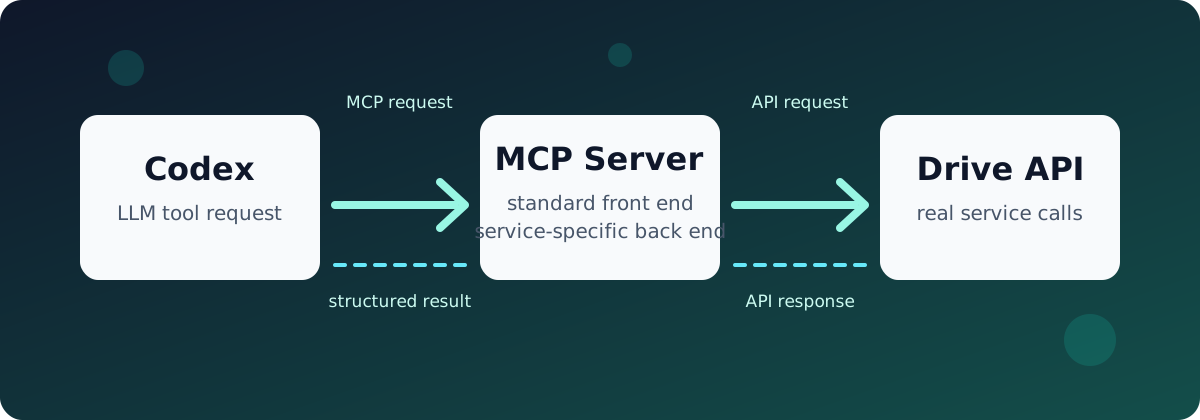
An MCP server is an adapter between an AI tool and an external system.
If you know Terraform, you can think of an MCP server a bit like a Terraform provider: it gives the client a standard interface while hiding the service-specific API calls behind it.
The front side speaks a protocol that Codex understands. The back side talks to the real service API, such as Google Drive. When the LLM needs Drive data, Codex calls an MCP tool with a structured request. The MCP server receives that request, translates it into a Drive API call, and returns the result back to Codex.
That standard interface is the useful part. Codex does not need custom Google Drive logic built in; it only needs to know how to talk to MCP servers.
Target Architecture
The working setup uses a local MCP server:
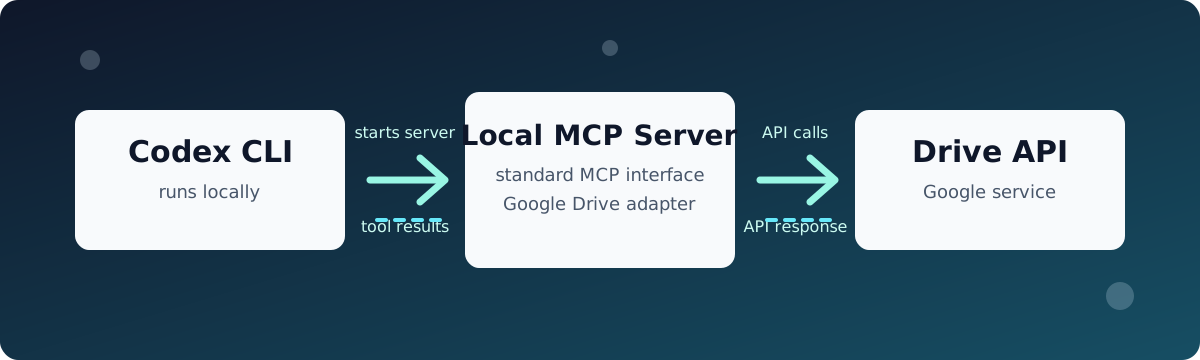
Codex does not talk to Google Drive directly. It starts a local MCP server process, and that server uses Google OAuth credentials to call the Drive API.
Step 1: Use the Correct Google Cloud Project ID
The first issue was simple but common: using the project display name instead of the project ID.
List projects with:
Use the value under PROJECT_ID:
For the local MCP server, the required API is:
The hosted Google Drive MCP API is separate:
That hosted API was useful during testing, but it was not required for the final local MCP setup.
Step 2: Create Google OAuth Credentials
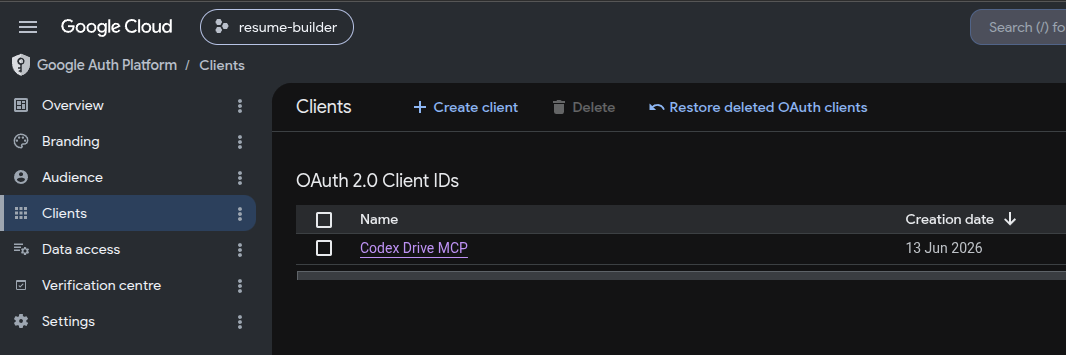
The local Drive MCP server needs OAuth credentials from Google Cloud.
In Google Cloud Console:
- Open Google Auth Platform.
- Configure the OAuth consent screen.
- Add the minimum Drive read scope:
- Create an OAuth client.
- Choose Desktop app.
- Download the OAuth JSON file.
Step 3: Avoid the Snap Install of Codex
One failure looked like a normal Linux permissions issue:
Failed to read project config file /home/YOUR_USER/.codex/config.toml:
Permission denied (os error 13)
The file permissions were correct, but Codex was installed through Snap:
Output showed:
Snap confinement can prevent access to hidden directories such as ~/.codex, even when POSIX permissions look correct.
The fix was to remove the Snap package and install Codex outside Snap:
After that, Codex could read ~/.codex/config.toml.
Step 4: Why the Hosted Google Drive MCP Did Not Work
I first tried Google's hosted Drive MCP endpoint:
[mcp_servers.drive]
url = "https://drivemcp.googleapis.com/mcp/v1"
scopes = [
  "https://www.googleapis.com/auth/drive.readonly",
  "https://www.googleapis.com/auth/drive.file",
]
default_tools_approval_mode = "prompt"
The login flow failed in two stages.
First:
After adding an OAuth client ID, the browser flow started, but token exchange failed:
That means the hosted endpoint expected a confidential OAuth client flow with a client secret. Codex's MCP OAuth path in this setup provided a client ID but not a client secret.
The hosted MCP endpoint exposed more tools, but it was not usable with Codex in this environment without a compatible client-secret flow.
Step 5: Use the Local Google Drive MCP Server
The local server that worked was:
Prepare a private config directory:
Move the downloaded OAuth JSON into place:
mv ~/Downloads/client_secret_*.json ~/.config/gdrive-mcp/gcp-oauth.keys.json
chmod 600 ~/.config/gdrive-mcp/gcp-oauth.keys.json
Run the auth flow:
GDRIVE_OAUTH_PATH="$HOME/.config/gdrive-mcp/gcp-oauth.keys.json" GDRIVE_CREDENTIALS_PATH="$HOME/.config/gdrive-mcp/credentials.json" npx -y @modelcontextprotocol/server-gdrive auth
Expected output:
Secure the generated credentials:
Step 6: Configure Codex
The Codex config lives at:
The working MCP config is:
[mcp_servers.gdrive]
command = "npx"
args = ["-y", "@modelcontextprotocol/server-gdrive"]
default_tools_approval_mode = "prompt"

[mcp_servers.gdrive.env]
GDRIVE_CREDENTIALS_PATH = "/home/YOUR_USER/.config/gdrive-mcp/credentials.json"
Do not add auth to the Codex MCP config. This is wrong:
The auth command is only for manually generating credentials.json. Codex should start the server itself, not the browser login flow.
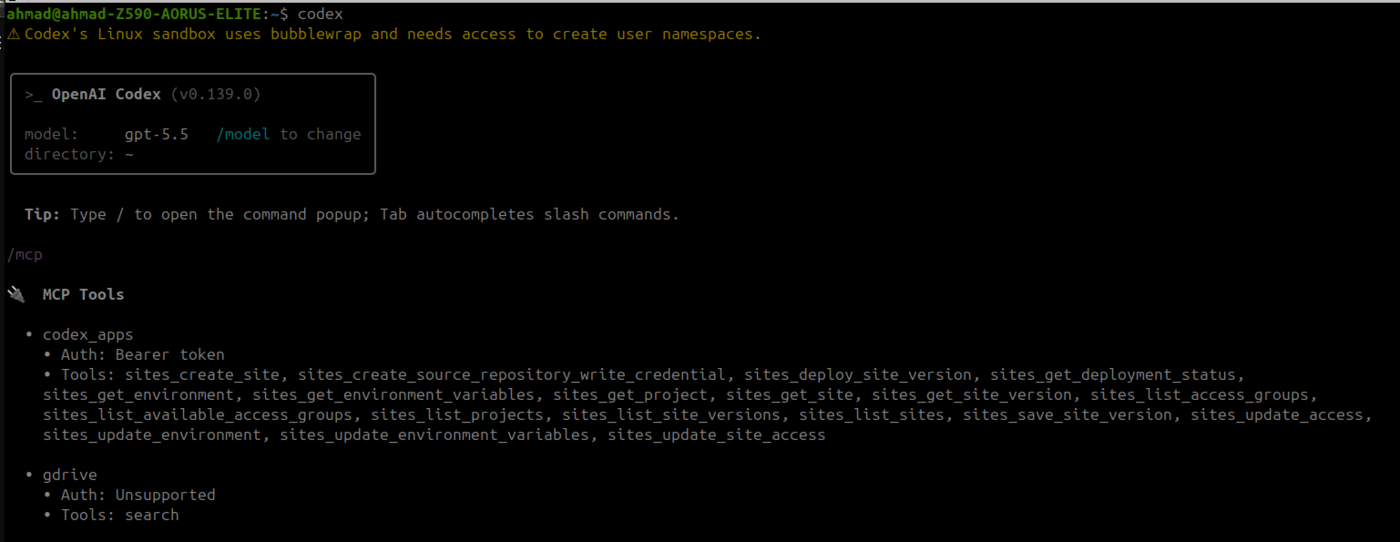
Step 7: Verify the MCP Server
Start Codex:
Inside Codex:
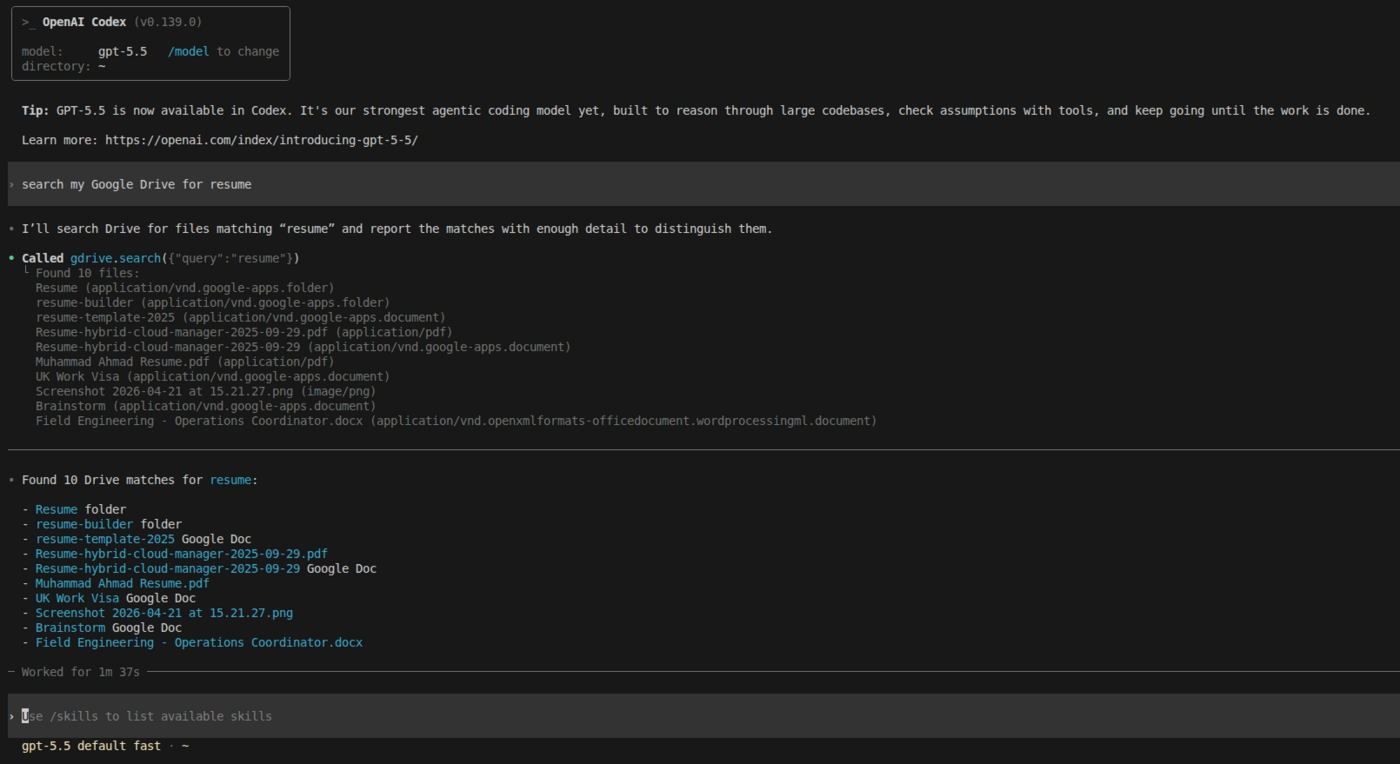
The gdrive server should appear with search/read capabilities.
Test with:
Important Limitation: Read Only
The local @modelcontextprotocol/server-gdrive package is an archived reference server. It is hardcoded to use:
That makes it suitable for:
- searching Drive
- reading Drive files
- exporting readable content from supported Google file types
It is not suitable for:
- creating files
- copying files
- updating documents
- deleting files
Adding broader scopes in Google Cloud is not enough by itself. The MCP server also needs to request those scopes and expose write-capable tools.
For write support, a better approach is a custom local MCP server using scopes such as:
For editing Google Docs content, the server would also need the Docs API and an appropriate Docs scope.
Token Refresh Caveat
Google OAuth credentials include:
The access_token is short-lived. A client normally refreshes it with the refresh_token, but in practice this archived local server can still return auth errors after token expiry or when the refresh token becomes invalid.
When that happens, rerun:
GDRIVE_OAUTH_PATH="$HOME/.config/gdrive-mcp/gcp-oauth.keys.json" GDRIVE_CREDENTIALS_PATH="$HOME/.config/gdrive-mcp/credentials.json" npx -y @modelcontextprotocol/server-gdrive auth
Then restart Codex so the MCP server process reloads the updated credentials file.
Lessons Learned
Prefer local MCP when OAuth compatibility matters
The hosted Google Drive MCP endpoint exposed more capabilities, but the OAuth flow did not fit Codex cleanly in this setup. The local server gave more control over credentials and execution.
Snap confinement can look like file permission failure
The Permission denied error was not fixed by chmod or chown. The root cause was Snap confinement.
OAuth scopes are real permissions
The token had:
That was enough for search and read, but not enough for write operations. The MCP server also needed to implement write tools, which it did not.
MCP config starts servers; it does not run setup commands
Codex should start:
The browser-based auth step remains a separate administrative command.
Final Takeaway
The working setup is good for giving Codex read/search visibility into Google Drive:
It is not a full Google Workspace automation layer. For write operations, the right next step is a dedicated write-capable MCP server with explicit Drive and Docs scopes.
tags: #Codex #MCP #GoogleDrive #GoogleCloud #OAuth #Linux #AIEngineering #DevOps #Automation